
Building your own PC is a rewarding experience that offers unparalleled customization, often better performance for your dollar, and a deep understanding of your machine’s capabilities.
Embarking on the journey of creating your ultimate system can seem daunting, but with this comprehensive Best PC Build Guide, you’ll gain the expertise and confidence to craft a machine perfectly tailored to your needs. Having assembled numerous rigs over the years, from budget-friendly gaming setups to high-performance workstations, I’ve learned the ins and outs of component selection, compatibility, and troubleshooting. This guide is designed to demystify the process, ensuring you not only build a fantastic PC but also understand why each choice contributes to the overall performance and longevity of your new pride and joy. Let’s dive in and unlock the full potential of a custom PC build.
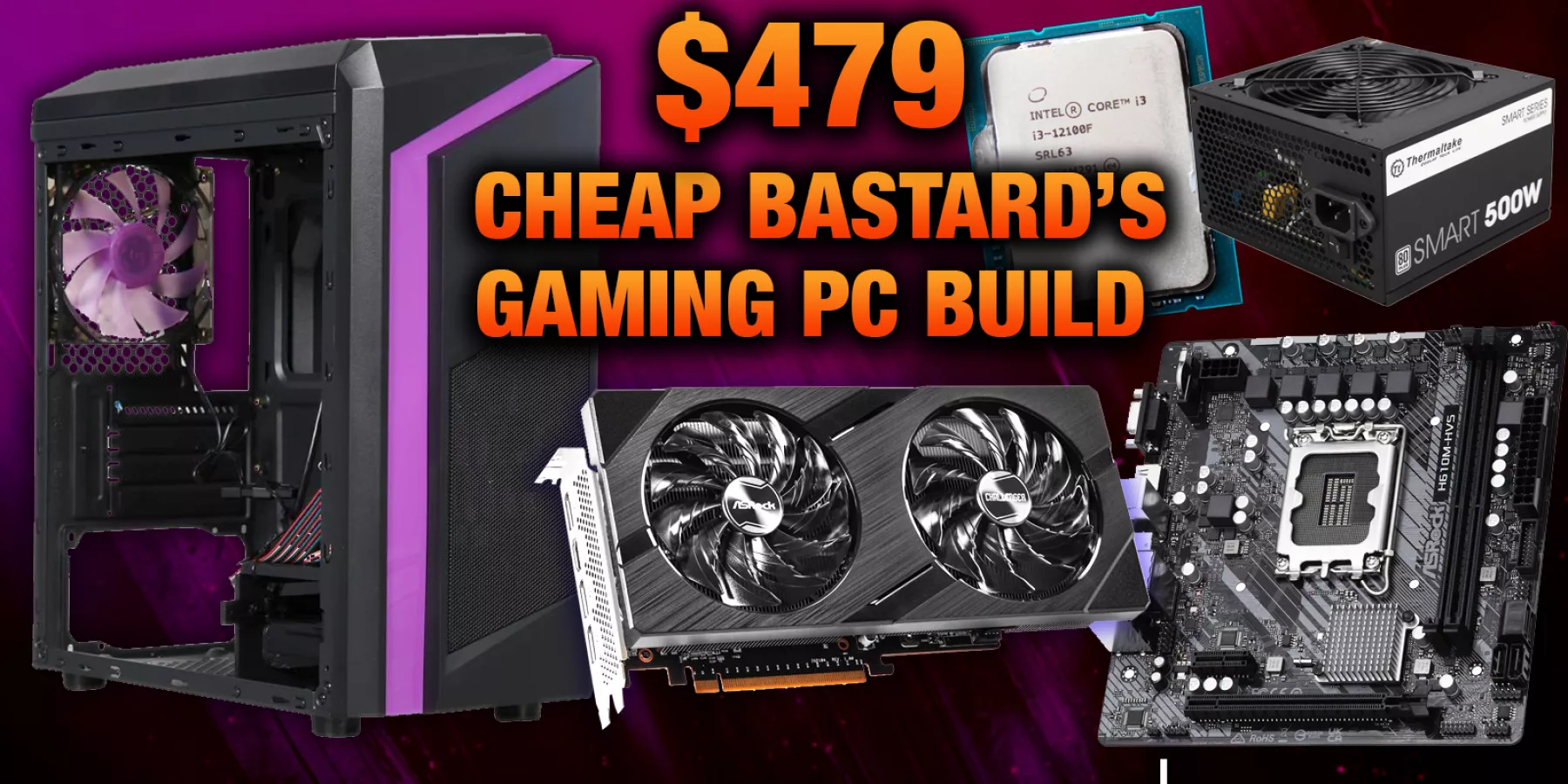
Why Building Your Own PC is the Best Choice
Opting to build your own PC rather than buying a pre-built system comes with a plethora of advantages that savvy tech enthusiasts swear by. The primary benefit is undeniable: customization. You get to handpick every single component, ensuring your machine aligns perfectly with your specific requirements, whether you’re a hardcore gamer, a content creator, or simply need a reliable daily driver. This level of control means you’re not paying for unnecessary features or compromising on essential ones.
From a value perspective, building your own PC often provides a better performance-to-price ratio. Retailers add markups, and pre-builts might skimp on certain components (like power supplies or motherboards) to keep costs down while highlighting headline-grabbing parts. When you build, your money goes directly into the quality components that matter most to you. I remember my very first build; the satisfaction of hitting the power button and seeing everything light up, knowing I had pieced it all together, was truly unmatched. It taught me so much about how computers work, and that hands-on experience has been invaluable ever since.
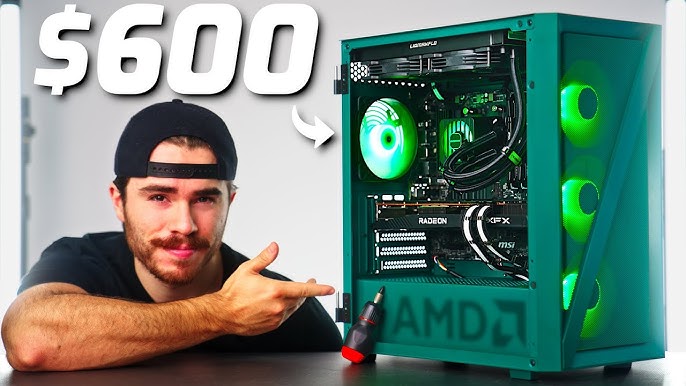
Essential Components of Any Best PC Build Guide
Every great PC build starts with understanding its foundational parts. Think of these as the organs of your machine, each playing a critical role in its overall function. Getting these right is key to ensuring your Best PC Build Guide delivers the performance you expect.
CPU (Central Processing Unit)
The CPU, or Central Processing Unit, is often called the “brain” of your computer. It handles all the instructions and calculations that make your software run. The two main players in the CPU market are Intel and AMD, each offering a range of processors with varying core counts and clock speeds. For gaming, a CPU with strong single-core performance is often beneficial, while for tasks like video editing or 3D rendering, more cores generally lead to faster processing. Choosing the right CPU is fundamental to the performance of your entire system.
GPU (Graphics Processing Unit)
For anyone interested in gaming, video editing, or graphic design, the GPU (Graphics Processing Unit) is arguably the most crucial component. It renders all the images, videos, and animations you see on your screen. NVIDIA and AMD are the dominant GPU manufacturers, offering cards across all price points. Factors like VRAM (video memory) and raw processing power dictate a GPU’s performance, directly impacting frame rates in games or rendering times for creative projects. Matching your GPU to your monitor’s resolution and refresh rate is a smart move for the Best PC Build Guide.
Motherboard
The motherboard acts as the central nervous system, connecting all your components and allowing them to communicate. It needs to be compatible with your chosen CPU (socket type) and supports specific RAM types and speeds. Motherboards come in different form factors (e.g., ATX, Micro-ATX), which dictate their size and the number of expansion slots they offer. Look for features like sufficient PCIe slots for your GPU and other cards, M.2 slots for fast SSDs, ample USB ports, and built-in Wi-Fi if needed. A good motherboard ensures stability and provides room for future upgrades.
RAM (Random Access Memory)
RAM, or Random Access Memory, is where your computer temporarily stores data that the CPU needs quick access to. For most modern uses, 16GB of RAM is a solid starting point for a gaming PC or general productivity, while 32GB or more is beneficial for heavy multitasking, content creation, or professional applications. RAM speed (measured in MHz) and latency (CL) also impact performance, with higher speeds and lower latencies generally being better. Always install RAM in dual-channel configurations (e.g., two 8GB sticks instead of one 16GB) for optimal performance.
Storage (SSD/HDD)
Storage is where your operating system, games, and all your files reside. Solid State Drives (SSDs) are significantly faster than traditional Hard Disk Drives (HDDs) and are now considered essential for your primary drive, where Windows and frequently used applications are installed. NVMe SSDs, which connect via M.2 slots, are the fastest option, offering incredible boot and load times. SATA SSDs are also fast and a good value. HDDs still offer the best cost-per-gigabyte for mass storage of large files or game libraries where speed isn’t paramount. A common setup in a Best PC Build Guide is a fast NVMe SSD for the OS and a larger SATA SSD or HDD for games and data.
Power Supply Unit (PSU)
The Power Supply Unit (PSU) is often overlooked but is absolutely critical for the stability and longevity of your PC. It converts AC power from your wall outlet into the DC power your components need. Never skimp on the PSU; a cheap or insufficient unit can lead to system instability or even damage components. Choose a PSU with enough wattage to comfortably power all your components, with some headroom for future upgrades. Look for 80 PLUS efficiency ratings (Bronze, Gold, Platinum, Titanium), which indicate how efficiently the unit converts power, reducing waste heat and electricity consumption. Modular PSUs also simplify cable management significantly.
PC Case
More than just an enclosure, your PC case plays a vital role in cooling, aesthetics, and overall build experience. Consider its form factor to ensure all your chosen components fit, especially your motherboard and GPU. Good airflow is paramount; a case with ample fan mounts and good ventilation will keep your components cool and prevent thermal throttling. Beyond functionality, the case also defines the look of your Best PC Build Guide, so pick one that you find visually appealing and easy to work with.
Cooling (CPU Cooler & Case Fans)
Effective cooling is essential for maintaining optimal performance and component longevity. Your CPU will likely come with a stock cooler, but for gaming or any demanding tasks, an aftermarket CPU cooler is highly recommended. You can choose between air coolers (large heatsinks with fans) or All-In-One (AIO) liquid coolers, both offering superior performance. Beyond the CPU, proper case fan placement is crucial for creating positive or negative air pressure, which helps dissipate heat and prevent dust buildup. Strategic fan configuration is a small but mighty detail in any Best PC Build Guide.
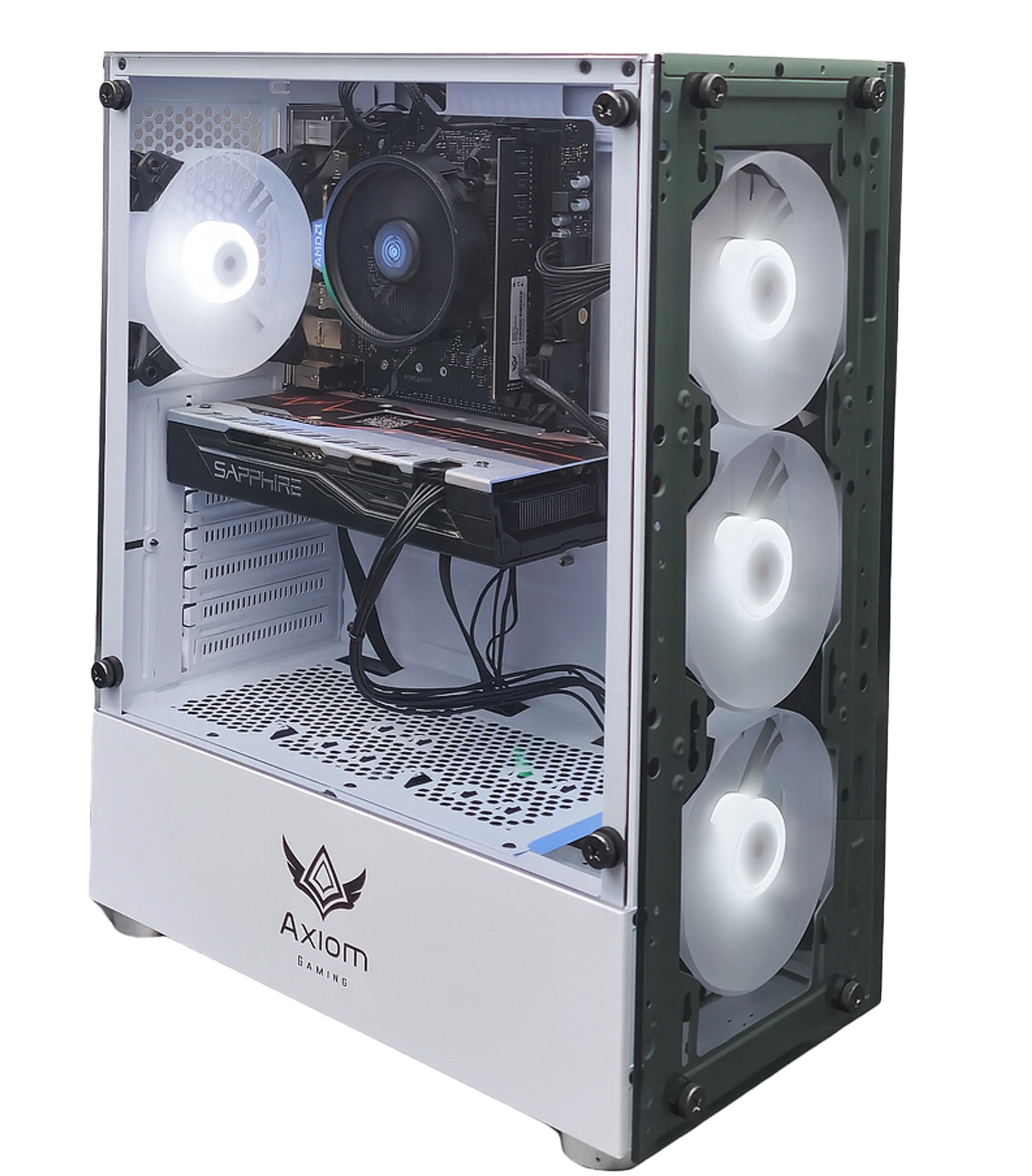
Budgeting for Your Best PC Build Guide: Tiers and Expectations
Understanding how to allocate your budget effectively is one of the most critical aspects of any PC build. You can create an excellent machine at various price points, each offering a different level of performance and capability. My experience has shown me that sticking to a well-planned budget upfront saves a lot of headaches later on.
Entry-Level PC Build Guide (Under $700)
An entry-level PC build focuses on providing solid performance for 1080p gaming at medium to high settings and handling general productivity tasks with ease. At this budget, you’ll be looking for components that offer the best bang for your buck, often prioritizing a capable CPU with integrated graphics or an older generation dedicated GPU. This tier is perfect for students, casual gamers, or those new to PC gaming. You might opt for a fast NVMe SSD for your OS and main games, complemented by a larger HDD for other files. It’s about smart compromises to maximize core performance.
Mid-Range PC Build Guide ($700 – $1500)
The mid-range is where you find the sweet spot for most users. A Best PC Build Guide in this category typically delivers excellent 1080p gaming at high or ultra settings, comfortable 1440p gaming, and robust performance for content creation or more demanding software. Here, you can afford a more powerful dedicated GPU and a multi-core CPU, along with faster RAM and ample SSD storage. This is where I often guide friends who want a significant upgrade without breaking the bank. It offers a balance of future-proofing and immediate performance, ensuring a smooth experience across a wide range of applications.
High-End/Enthusiast PC Build Guide ($1500+)
For those who demand the absolute best performance, whether for 4K gaming, professional-grade content creation, or simply future-proofing their system for years to come, the high-end tier is the answer. These builds feature top-tier CPUs, the latest flagship GPUs, ample high-speed RAM, and multiple NVMe SSDs. You can also incorporate advanced cooling solutions, aesthetic upgrades, and premium cases. This budget allows for no compromises, offering unparalleled speed, visual fidelity, and the ability to tackle any task thrown its way. My personal workstation falls into this category, and the difference in workflow efficiency for tasks like video rendering is truly profound.

Step-by-Step Assembly: Bringing Your Best PC Build Guide to Life
Once you have all your components, the exciting part begins: assembly! While it might seem like a complex puzzle, breaking it down into manageable steps makes the process straightforward and enjoyable. Before you begin, ensure you have a clear, spacious workspace and a Philips head screwdriver. A magnetic tip is a bonus! Always ground yourself to dissipate static electricity by touching a metal part of your unpowered case or using an anti-static wrist strap.
Start by installing the CPU, CPU cooler, and RAM onto your motherboard while it’s still outside the case. This gives you more room to work. Carefully place the motherboard into the PC case, securing it with standoffs and screws. Next, install your power supply unit, routing cables as neatly as possible from the start. Then, add your storage devices, making sure they are securely mounted and connected. Finally, the GPU goes into its PCIe slot, followed by connecting all the necessary power cables from the PSU to your components. One common mistake I’ve seen is forgetting the I/O shield for the motherboard; it’s much easier to install before the motherboard goes into the case! After everything is connected, double-check all your connections. For the first boot, connect your monitor, keyboard, and mouse, then power it on. You should see a display! If not, don’t panic; retrace your steps and check connections carefully. Getting into the BIOS and ensuring your RAM is running at its correct speed (XMP/DOCP profile) is a great first step after a successful boot.
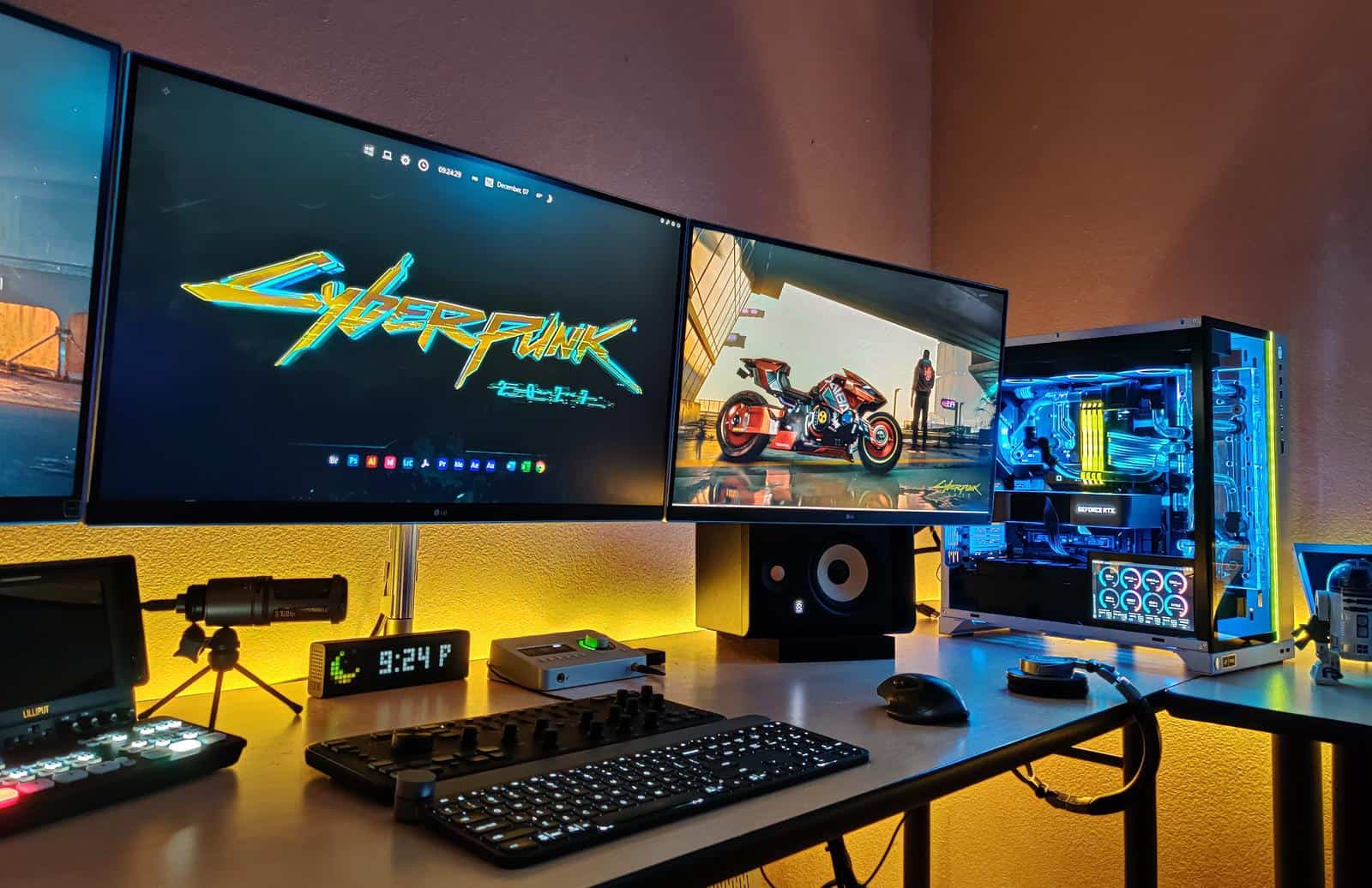
Post-Build Essentials: Optimizing Your New PC
Building your Best PC Build Guide is only half the journey; the other half involves optimizing it for peak performance and stability. Once your PC powers on successfully, there are crucial steps to take before you can truly unleash its power. These post-build essentials ensure everything runs smoothly and efficiently.
First, you’ll need to install your operating system, typically Windows. After installation, the most critical next step is installing all necessary drivers. This includes your motherboard chipset drivers, which are usually found on the manufacturer’s website, and critically, your GPU drivers from NVIDIA or AMD. Outdated or missing drivers can severely impact performance and cause instability. Next, perform all available Windows updates. Once drivers are up-to-date, consider downloading monitoring software to keep an eye on CPU and GPU temperatures, especially during demanding tasks. Running benchmarks and stress tests can help confirm system stability and ensure everything is performing as expected. For enthusiasts, exploring basic overclocking for your CPU or GPU can squeeze out extra performance, but always proceed with caution and research.

Frequently Asked Questions of Best PC Build Guide
Is building a PC hard for beginners?
No, building a PC is very achievable for beginners. With detailed guides and online resources, the process is largely like assembling LEGOs, focusing on careful component placement and cable connections.
How much money do I need for a good gaming PC?
You can build a capable entry-level gaming PC for around $600-$700, while a strong mid-range system that handles most modern games well will typically cost between $1000-$1500.
What’s the most important component in a Best PC Build Guide?
The most important component largely depends on your primary use. For gaming, the GPU is often paramount, while for professional creative tasks, the CPU and RAM take precedence.
Should I buy an Intel or AMD CPU?
Both Intel and AMD offer excellent CPUs. Intel often has a slight edge in raw single-core performance, while AMD often provides more cores for multi-threaded tasks, making the choice dependent on your specific needs and budget.
How often should I upgrade my PC components?
Most PC users find that upgrading key components like the GPU or CPU every 3-5 years provides a noticeable performance boost and keeps their system competitive for modern applications and games.
Conclusion
Embarking on the journey of building your own PC is a profoundly rewarding endeavor, offering a unique blend of customization, cost-efficiency, and a deep understanding of your machine. From meticulously selecting each component to the thrilling moment of its first boot, the satisfaction of creating a system perfectly aligned with your vision is unparalleled. We’ve navigated the essential components, explored budgeting tiers, walked through the assembly process, and covered vital post-build optimizations to ensure your Best PC Build Guide delivers exceptional performance and longevity.
The beauty of a custom PC lies in its adaptability and the personal connection you forge with it. Don’t be intimidated by the technical aspects; embrace the learning process, leverage the wealth of information available, and trust in your ability to bring your dream machine to life. Ready to take the plunge? Start researching current component prices, compare benchmarks, and visualize your ideal setup. Share your build plans or questions in the comments below, and let’s continue the conversation about crafting the ultimate personalized computing experience!

Leave a Reply